

Hello everyone! Today I want to share a little tip on how to disable AI mode in the Google Chrome search bar.
With the continuous advancement of artificial intelligence, many browsers and search engines have started integrating AI features. While AI brings a lot of convenience to our everyday browsing, some users might prefer to disable these features and return to a more traditional search experience.
Here’s how to do it:
Open Google Chrome
Launch Google Chrome on your computer.
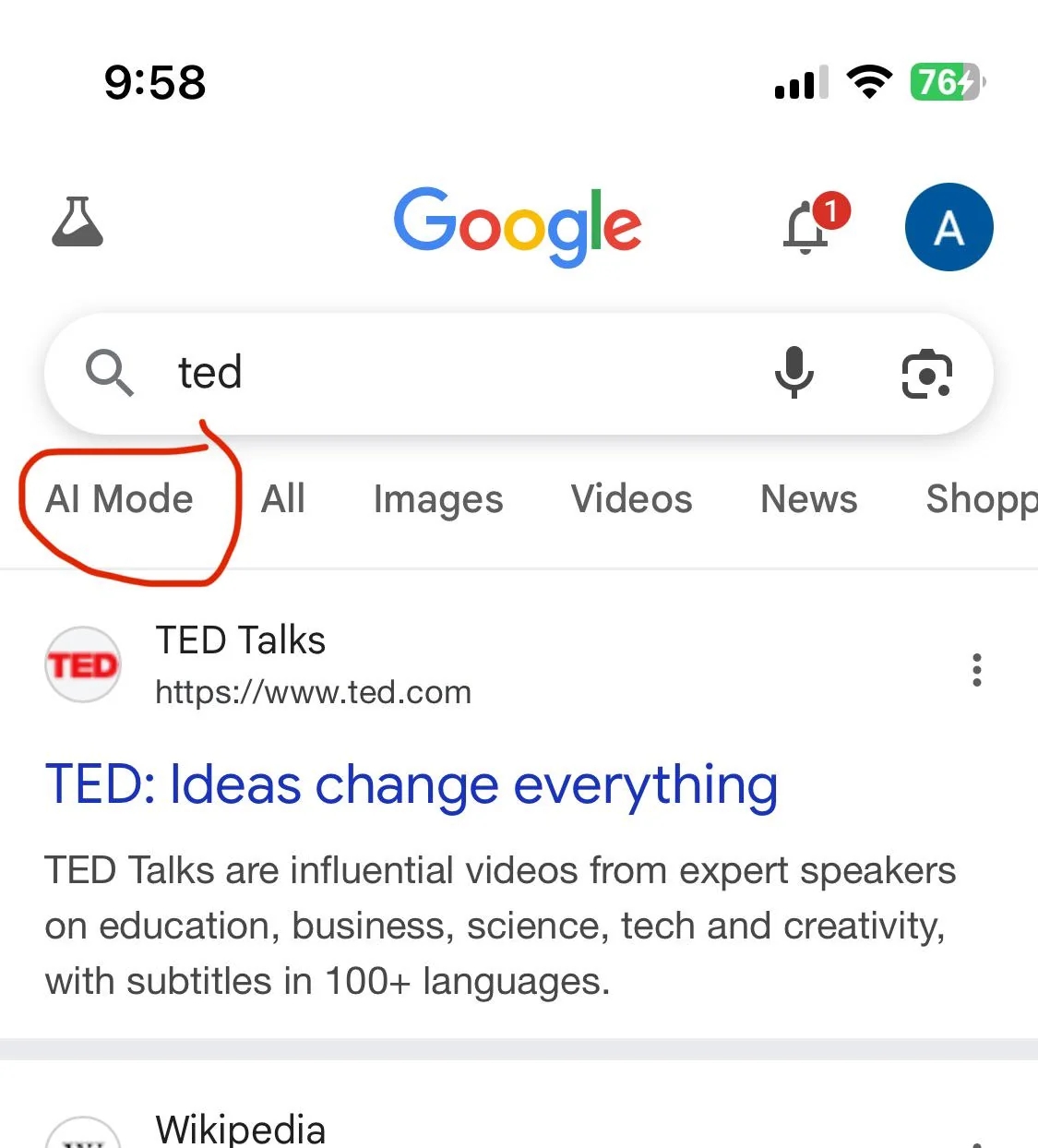
Go to Settings
In the top right corner of the browser, click the three-dot menu button and select Settings.
Find Search Engine Settings
In the settings page, scroll down to the Search Engine section.
Disable AI Features (if available)
Currently, Google Chrome itself doesn’t have a direct "AI mode" option. If you're using Google Search, which integrates AI-driven suggestions, you can try disabling automatic suggestions or switch to another search engine (like Bing, DuckDuckGo, etc.) to reduce AI's impact.
Update Extensions (if any)
If you have any AI-related extensions installed, go to the Chrome Extensions page to manage or disable them.
Tips:
Currently, AI features are being rolled out gradually in many browsers, so this method applies to specific versions that have already begun the integration.
If you don’t want Chrome to change your search experience, switching to a different search engine might be an easy solution.
I hope this little tip helps! If you have any other questions or would like to learn more about Chrome settings, feel free to leave a comment!